> ## Documentation Index
> Fetch the complete documentation index at: https://ionet-cca8037f-confidential-compute.mintlify.site/llms.txt
> Use this file to discover all available pages before exploring further.
# Deleting, Unstaking & Withdrawing
> Co-Staking operates as a smart contract on the blockchain, allowing device owners to invite co-stakers to contribute to their stake in exchange for a share of block rewards.
## Table of Contents
* [Deleting a Co-Staking Offer](/guides/staking/unstaking-deleting-withdrawing#deleting-a-co-staking-offer)
* [Unstaking](/guides/staking/unstaking-deleting-withdrawing#unstaking)
* [Withdrawing Overflow](/guides/staking/unstaking-deleting-withdrawing#withdrawing-overflow)
### Deleting a Co-Staking Offer
* If you unstake part of your contribution while co-staked, you are **not** subject to a cooldown period.
* If a co-staker cancels their stake, you have **7 days** to cover the remaining portion or create a new co-staking offer.
* During this **7-day period**, your device continues fulfilling staking requirements for block reward eligibility.
Your device must still meet all other criteria.
**Steps to Delete a Co-Staking Offer**:
1. Go to the **Manage Your Stake & Devices** block, where all your staking devices are listed, and click the three dots next to the desired device.
2. Select **Delete a Co-Staking Offer** from the dropdown list.
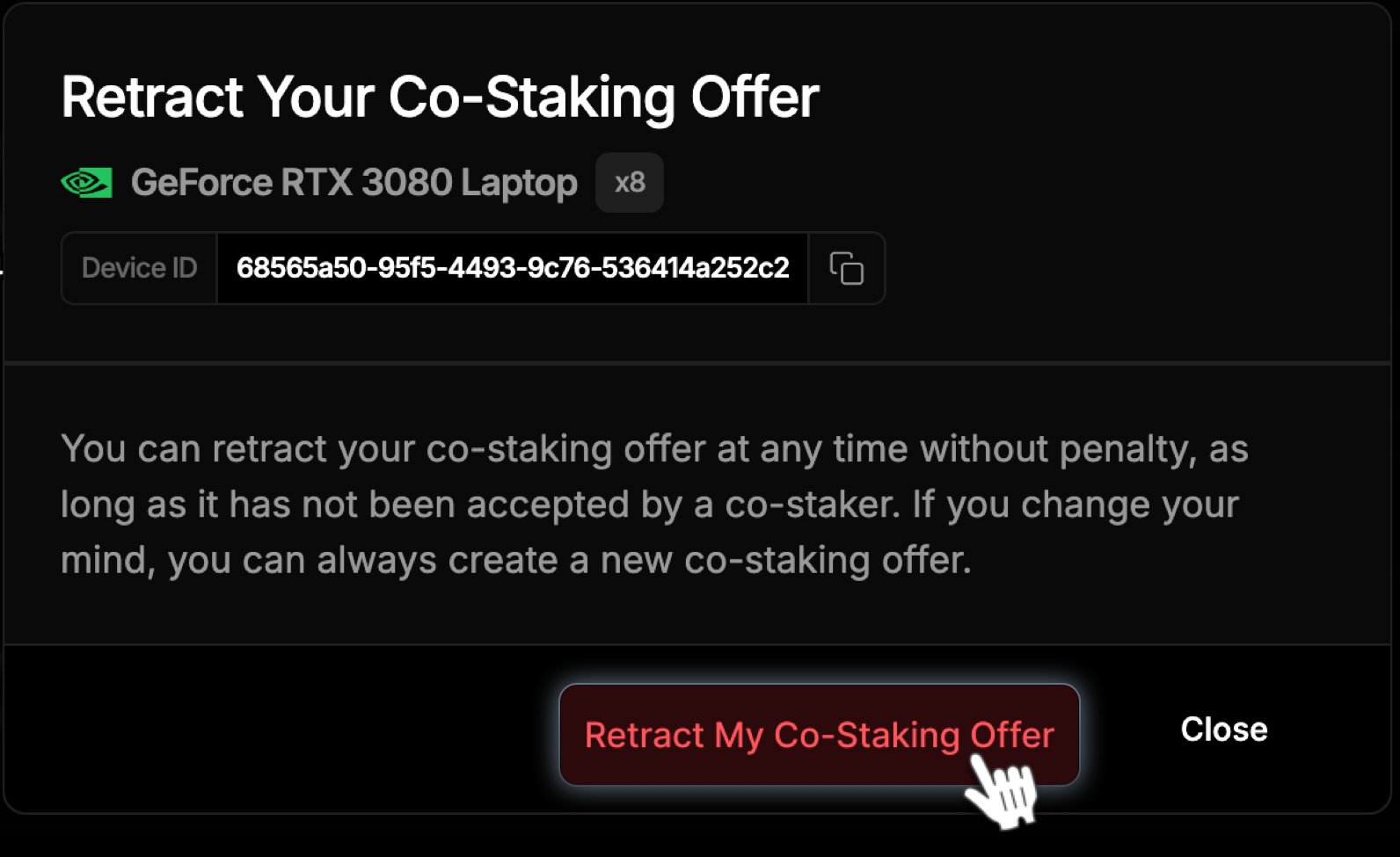
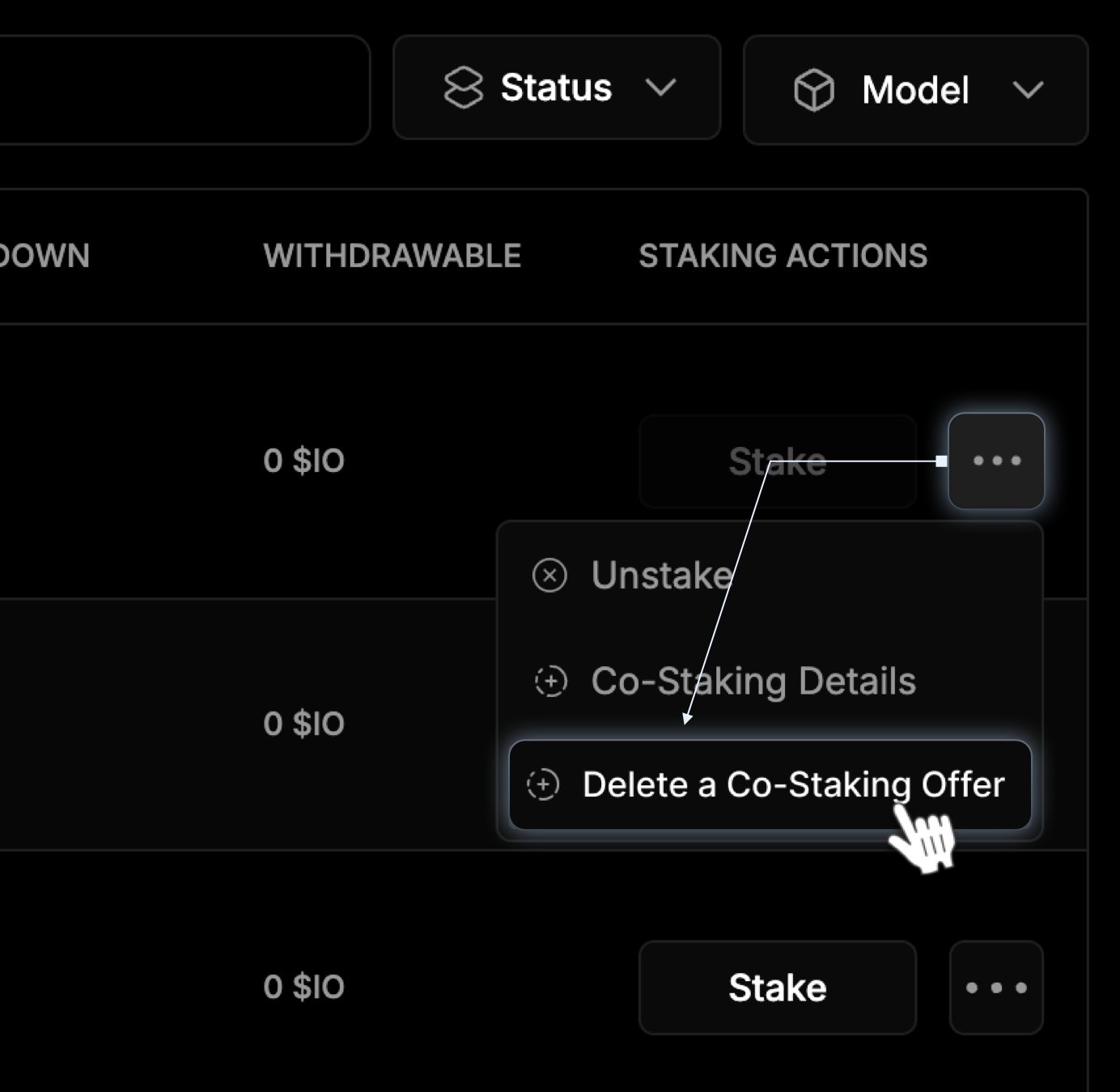 3. In the pop-up, confirm by clicking the **Retract My Co-Staking Offer** button to complete the process.
 **If you unstake first:**
* If your stake remains above the minimum requirement, there is no impact.
* If your stake **falls below the requirement**, the system automatically unstakes for the co-staker. In this case, all funds enter the **14-day cooldown period**.
### Unstaking
You can cancel a stake at any time.
* **Unstaking takes 14 days.**
* You must **unstake the entire amount**, which stops counting toward the **Minimum Required Stake** immediately.
* You **cannot** restake until the process is complete.
* Unstaking **is not available** for devices in **hired status.**
**How to Unstake Your Device:**
1. Go to the **Manage Your Stake & Devices** block, where all your staking devices are listed, and click the three dots next to the desired device.
2. Select **Unstake** from the dropdown list.
**If you unstake first:**
* If your stake remains above the minimum requirement, there is no impact.
* If your stake **falls below the requirement**, the system automatically unstakes for the co-staker. In this case, all funds enter the **14-day cooldown period**.
### Unstaking
You can cancel a stake at any time.
* **Unstaking takes 14 days.**
* You must **unstake the entire amount**, which stops counting toward the **Minimum Required Stake** immediately.
* You **cannot** restake until the process is complete.
* Unstaking **is not available** for devices in **hired status.**
**How to Unstake Your Device:**
1. Go to the **Manage Your Stake & Devices** block, where all your staking devices are listed, and click the three dots next to the desired device.
2. Select **Unstake** from the dropdown list.
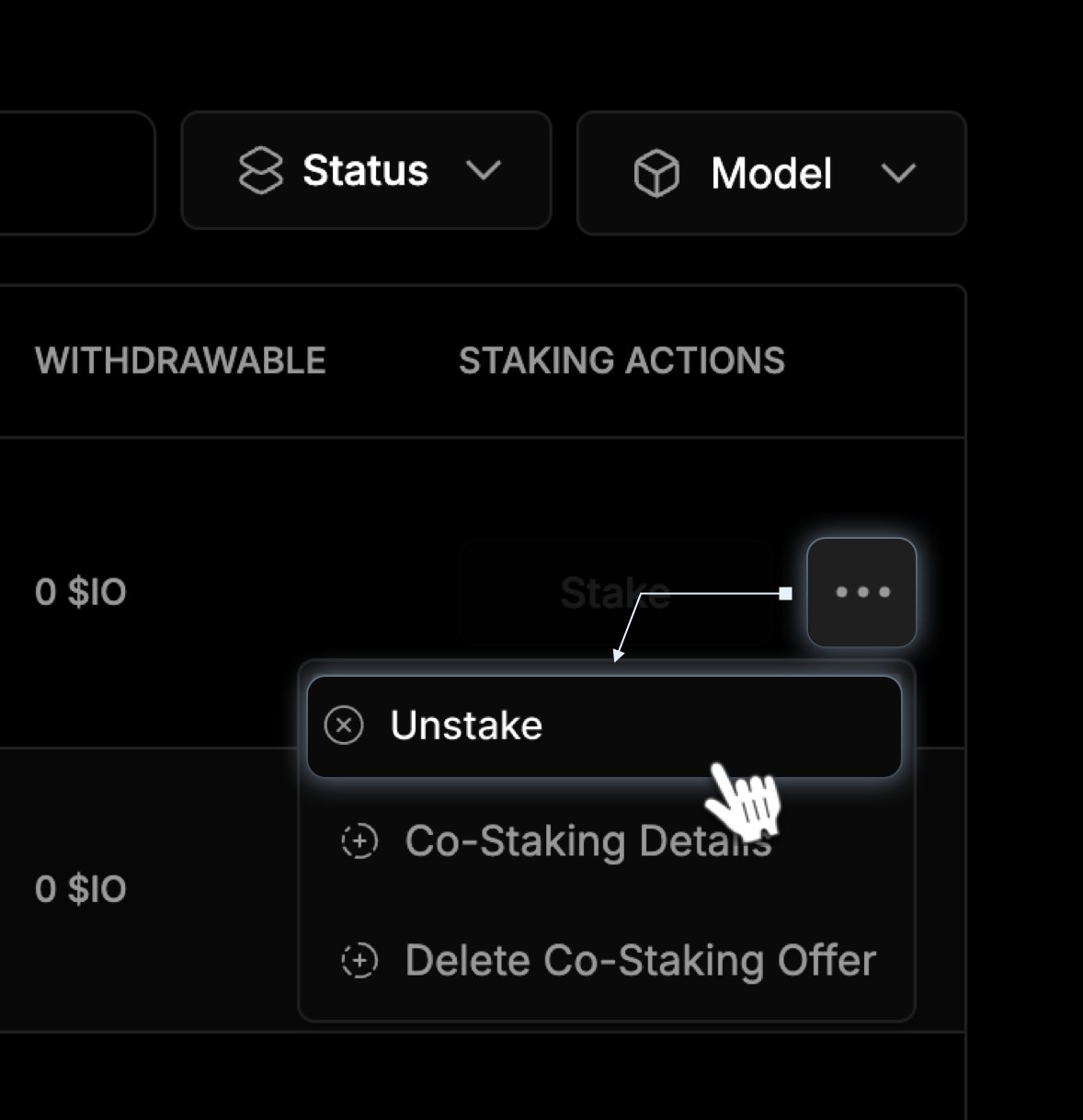 3. In the pop-up, confirm by clicking the **Unstake** button to complete the process.
 If an unfilled co-staking offer exists for the selected device, retract your offer before unstaking.
### Withdrawing Overflow
Overflow refers to funds exceeding your initial stake that can be withdrawn separately, while your original stake remains locked until the unstaking process is complete.
**How to Withdraw Overflow:**
1. Go to the **Manage Your Stake & Devices** section and select the **Co-Staked Devices** tab.
2. Find your device, click the ellipsis, and select **Withdraw Overflow** from the dropdown menu.
If an unfilled co-staking offer exists for the selected device, retract your offer before unstaking.
### Withdrawing Overflow
Overflow refers to funds exceeding your initial stake that can be withdrawn separately, while your original stake remains locked until the unstaking process is complete.
**How to Withdraw Overflow:**
1. Go to the **Manage Your Stake & Devices** section and select the **Co-Staked Devices** tab.
2. Find your device, click the ellipsis, and select **Withdraw Overflow** from the dropdown menu.
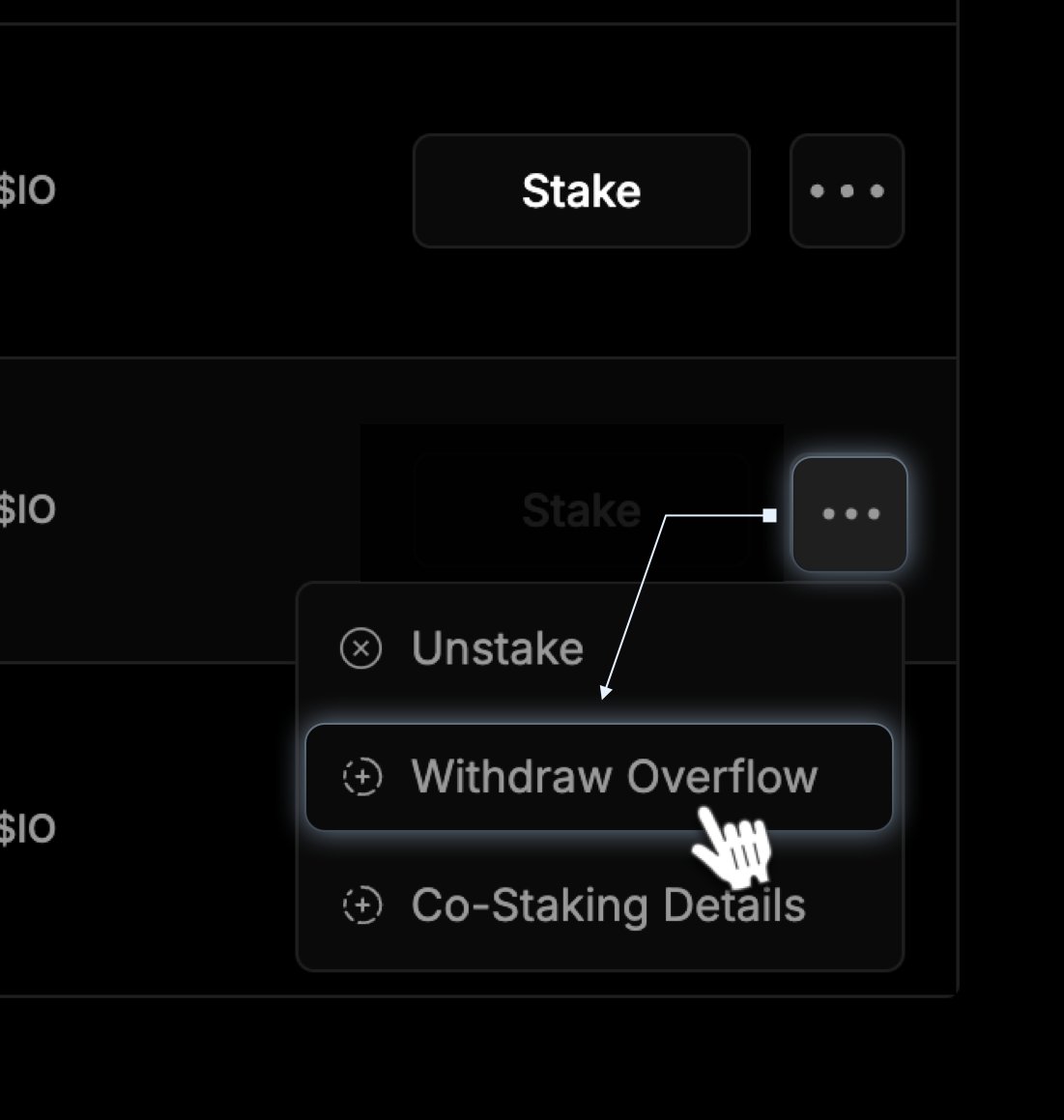 3. To confirm, click **Withdraw Overflow**. You can only withdraw overflow funds, not the main staked amount.
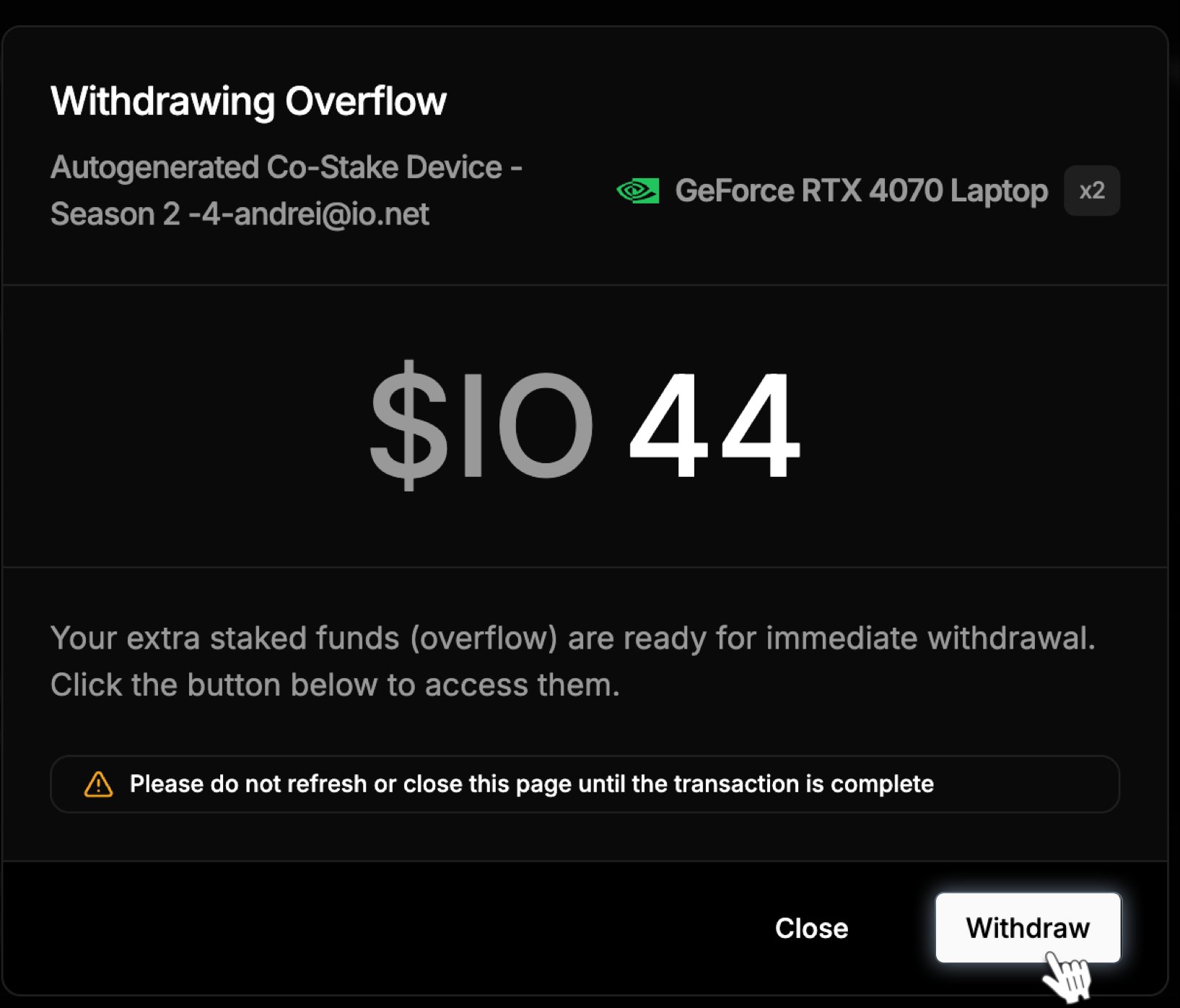 You can only withdraw overflow funds, not the main staked amount.