> ## Documentation Index
> Fetch the complete documentation index at: https://ionet-cca8037f-confidential-compute.mintlify.site/llms.txt
> Use this file to discover all available pages before exploring further.
# Exploring AI Agents
> Learn about AI Agents on io.net and how to use, configure, and deploy them to build autonomous AI systems.
Agents on [io.net](http://io.net) are packaged, executable components that encapsulate task logic, tool interactions, and external integrations. This section documents the agents provided by [io.net](http://io.net), including core agents and agents that integrate with third-party services such as *GitHub*, *Linear*, and other external tools. It describes how to deploy agents programmatically or via `curl`, configure runtime parameters, and manage secrets required for authenticated access to external APIs. These capabilities support repeatable, secure operation of AI agents within automated workflows.
## Getting Started
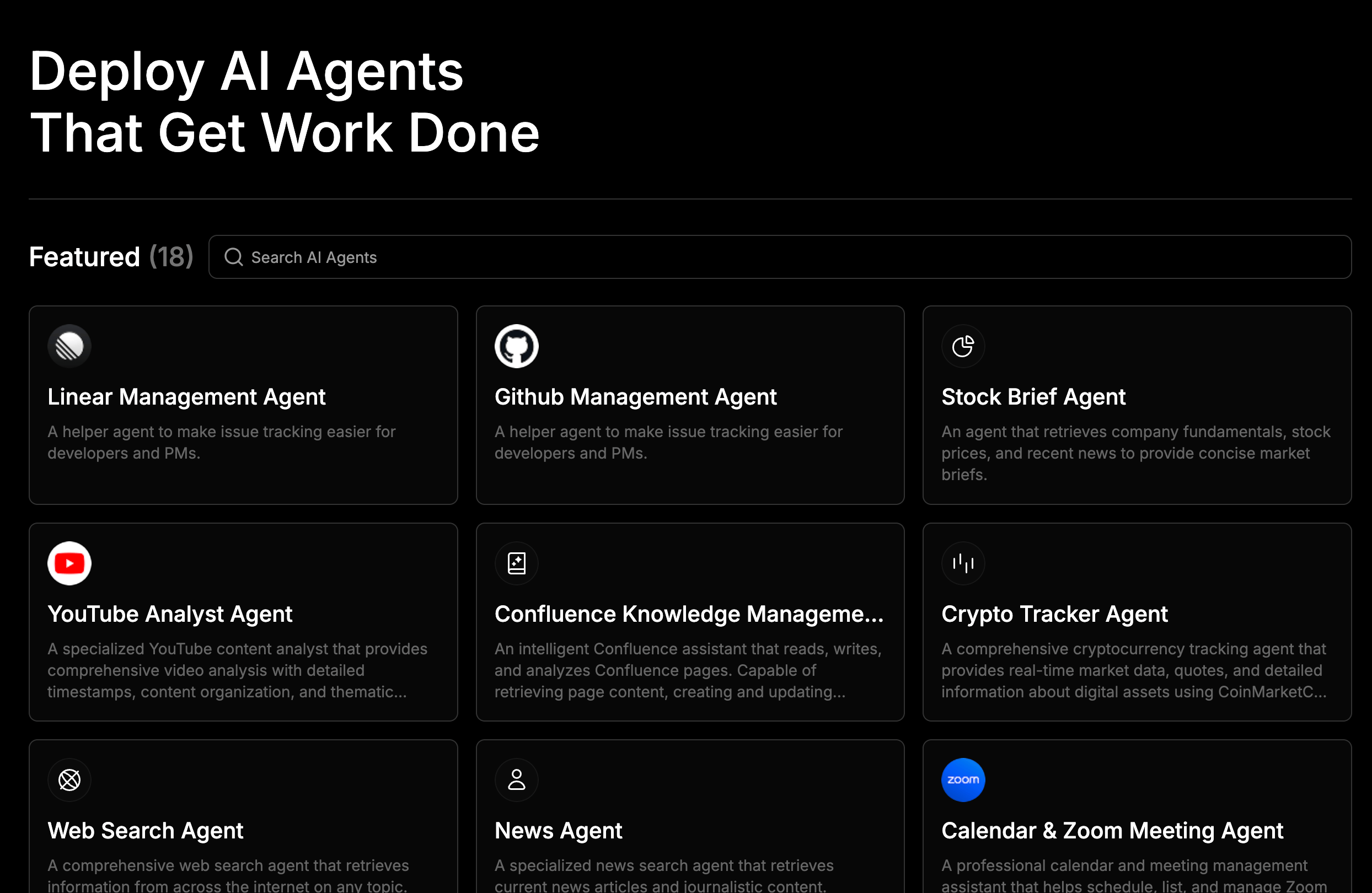
Open [io.net Intelligence](https://ai.io.net/) and navigate to the Agents tab in the navigation bar.
 Browse the list of available agents, or use the search bar to quickly locate a specific agent, then click on your chosen agent to view its details.
 ## **Deploying and Configuring Agents**
When an agent is selected, the *Agent Details* view provides everything needed to evaluate, install, and configure your chosen agent.
### Agent Details and Installation
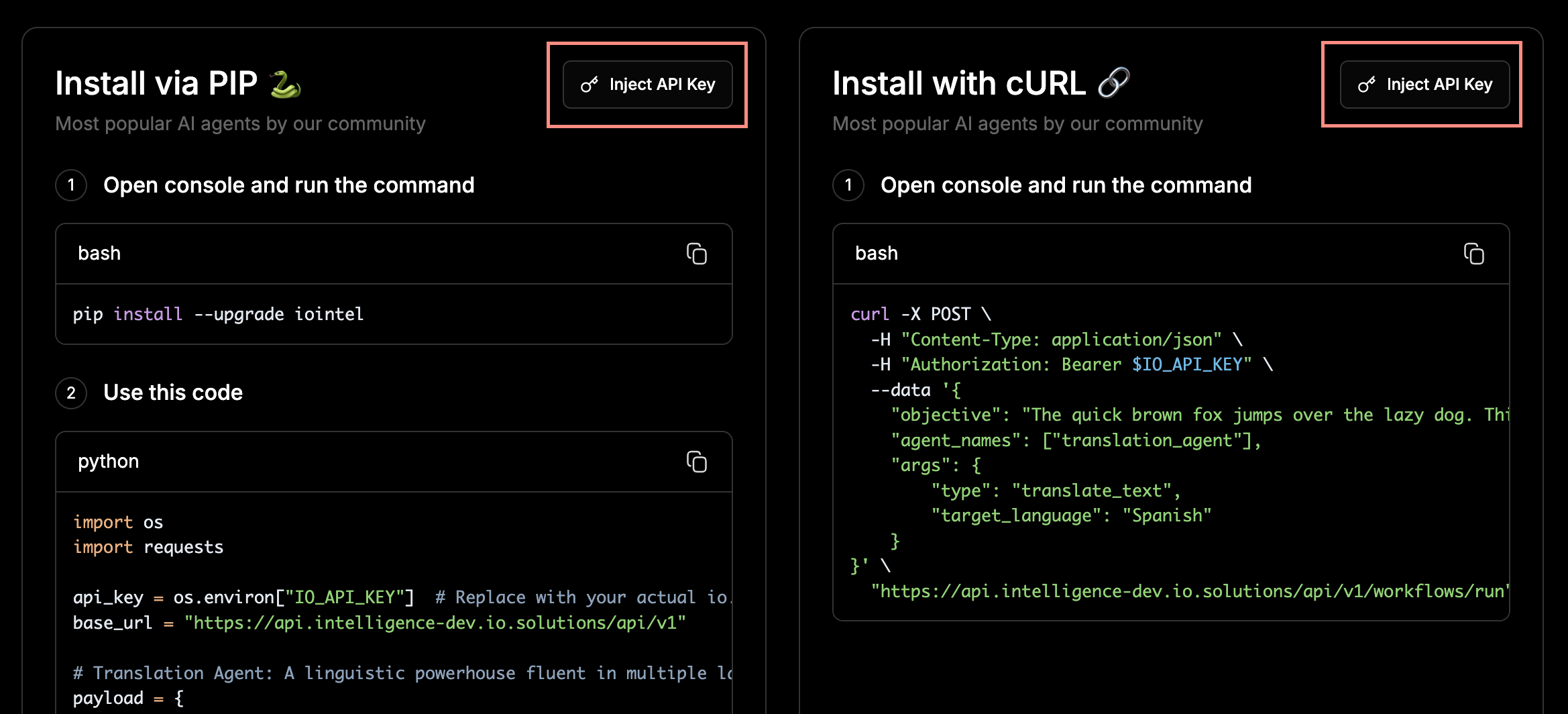
The *Agent Details* view displays information about your selected agent, along with installation options. Agents can be installed using either Python (via `pip`) or `cURL`, depending on your preferred workflow.
If you do not already have an existing API key, the *Agent Details* view provides an option to generate and inject a new API key directly into the provided `pip` or `curl` installation commands, allowing installation to proceed without leaving the page.
## **Deploying and Configuring Agents**
When an agent is selected, the *Agent Details* view provides everything needed to evaluate, install, and configure your chosen agent.
### Agent Details and Installation
The *Agent Details* view displays information about your selected agent, along with installation options. Agents can be installed using either Python (via `pip`) or `cURL`, depending on your preferred workflow.
If you do not already have an existing API key, the *Agent Details* view provides an option to generate and inject a new API key directly into the provided `pip` or `curl` installation commands, allowing installation to proceed without leaving the page.
 ### Trying an Agent before Installation
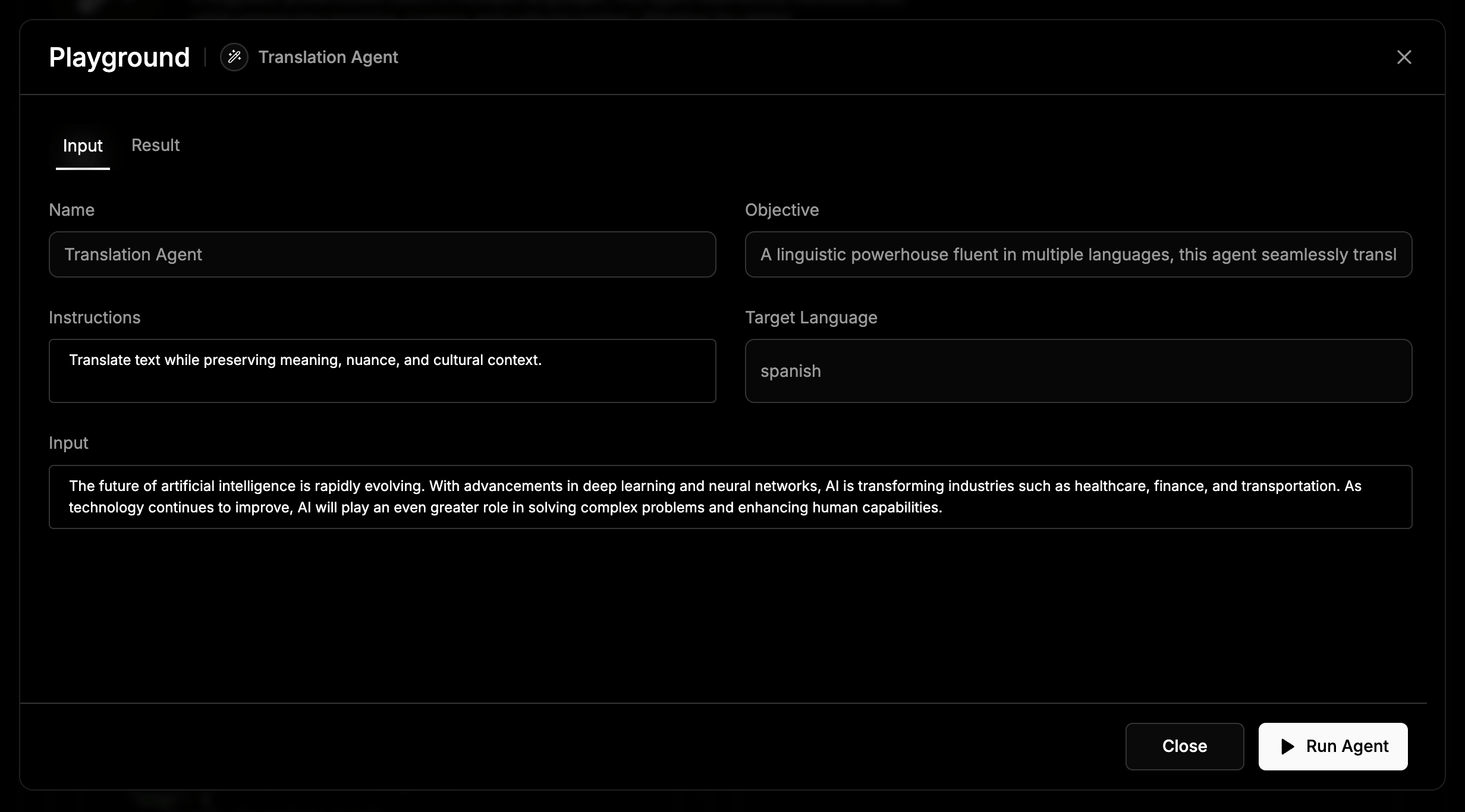
Before installing, an agent can be tested directly from the interface. Click the **Try Agent** button and it opens the *Playground* where you can be provide input for the agent.
After clicking the **Run Agent** button, the **Result** tab displays the agent’s output, making it possible to quickly validate behavior and responses before deployment.
### Trying an Agent before Installation
Before installing, an agent can be tested directly from the interface. Click the **Try Agent** button and it opens the *Playground* where you can be provide input for the agent.
After clicking the **Run Agent** button, the **Result** tab displays the agent’s output, making it possible to quickly validate behavior and responses before deployment.
 ### Configuring Secrets
Agents that integrate with third-party applications require secrets for authenticated access, for example, GitHub, Linear, Jira and many more.
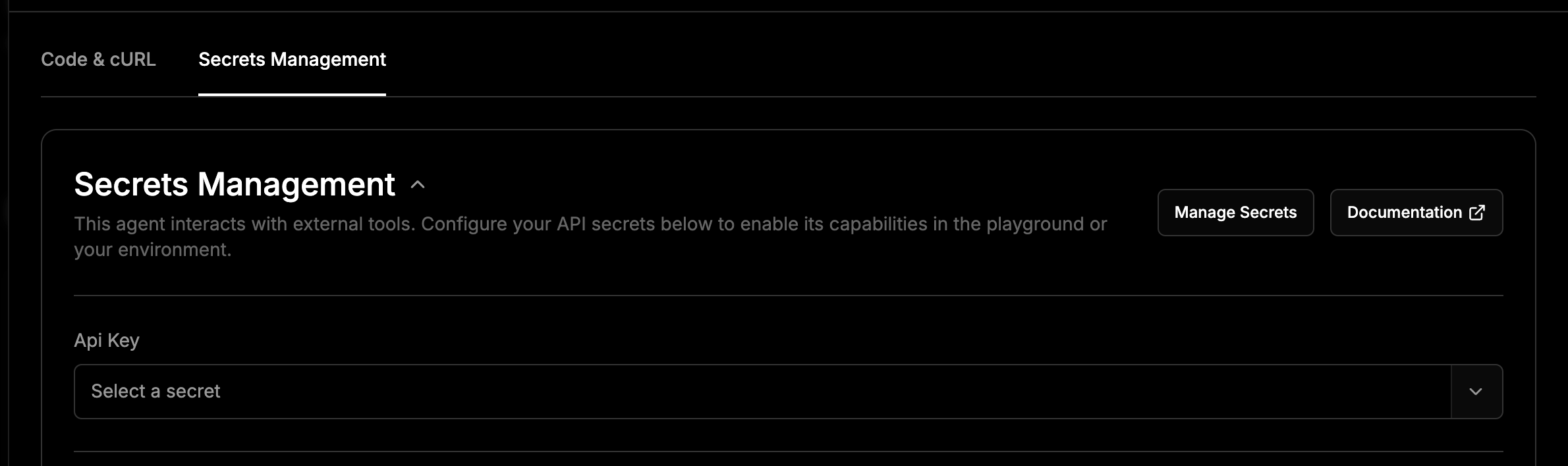
To configure secrets, navigate to the **Secret Management** tab within the *Agent Details* view.
### Configuring Secrets
Agents that integrate with third-party applications require secrets for authenticated access, for example, GitHub, Linear, Jira and many more.
To configure secrets, navigate to the **Secret Management** tab within the *Agent Details* view.
 On this tab:
* Clicking the **Manage Secrets** button redirects you to the *API Keys and Secrets* page.
* On the *API Keys and Secrets* page, a new secret can be added here by clicking **Add Secret** and providing the following details:
* *Secret Name*
* *Secret Value*
* *Associated Agent*
Alternatively, secrets can be created or selected directly within the **Secret Management** section of the *Agent Details* view:
* An existing secret can be selected from the list.
* A new secret can be created by entering a secret name and value.
* Secrets created here are automatically saved and will also appear in the *API Keys and Secrets* page.
Once the required secrets are configured, the agent is fully set up and ready to be interacted with.
On this tab:
* Clicking the **Manage Secrets** button redirects you to the *API Keys and Secrets* page.
* On the *API Keys and Secrets* page, a new secret can be added here by clicking **Add Secret** and providing the following details:
* *Secret Name*
* *Secret Value*
* *Associated Agent*
Alternatively, secrets can be created or selected directly within the **Secret Management** section of the *Agent Details* view:
* An existing secret can be selected from the list.
* A new secret can be created by entering a secret name and value.
* Secrets created here are automatically saved and will also appear in the *API Keys and Secrets* page.
Once the required secrets are configured, the agent is fully set up and ready to be interacted with.